Algora Help Center
Find answers to common questions and learn how to get the most out of Algora.
Algora Copilot
Algora’s Root Agent
The Root Agent is the central intelligence of Algora. It coordinates all other agents and tools to deliver the most relevant and efficient responses.
We are continuously improving it to ensure it selects the best data sources and reasoning methods for each query.
Default settings:
- It has access to news, files, market data, web search, portfolios by default.
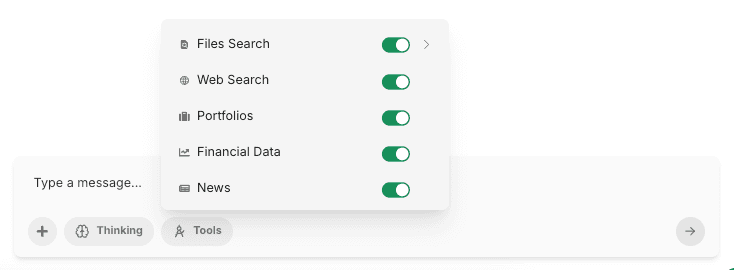
Algora’s available tools
When you start a new chat, you can choose which tools the Root Agent may use:
- Web Search for broader, real-time web results
- Financial Data (powered by FMP) for market and fundamental data
- Files for document-based question answering across your personal, public and company files
- News (powered by NewsAPI.ai) for global news coverage
- Portfolios for portfolio-specific analytics and insights
Tool selection is fixed once a conversation has started - create a new chat to change it.
Beyond these data sources, the agent can also create interactive charts, run code in a secure sandbox for calculations and file processing, remember key facts across a project, suggest and run workflows, and - when you have connected a brokerage such as TradeStation - retrieve account data and prepare orders for your confirmation.
Context window explained
The context window is a key concept for understanding how Algora’s AI operates. It represents the short-term memory of the model - the “brain space” available to process and reason over information.
By adding files, news, or portfolio data, you expand the context window, allowing the AI to access and reason over more relevant information when answering your query.
The Root Agent automatically fills this context window in the most effective way possible, ensuring that the model focuses on the most important details.
You can also influence the context window yourself by dragging and dropping relevant information (such as documents or news) into it - enhancing the precision and depth of the AI’s responses.
Clarifying questions
For ambiguous or complex requests, the Copilot may pause and ask you clarifying questions before proceeding - just like a real analyst would.
Questions appear as interactive cards in the chat. Some allow a single choice, others multiple selections, and you can always pick “Other” to type a custom answer. If a question is not relevant, simply skip it.
Answering these questions helps the agent focus its research and produce noticeably better answers. If you leave a conversation while a question is pending, a notification reminds you that the agent is waiting for your input.
Plan mode
For larger tasks, the Copilot can first draft a plan - a sequence of research and analysis steps - before executing it.
You can review the plan directly in the chat, edit, add or remove steps, or skip planning entirely if you just want a quick answer. Once the plan is approved, the agent works through the steps and you can follow its progress in the Activity tab.
Fact-checking answers
Every answer can be double-checked. Open the Fact-check tab in the Copilot panel (or click Double check response under a message) and Algora will extract the individual claims from the answer and verify each one against the sources and tool outputs gathered during the conversation.
Each claim is marked as Verified, Wrong, or Unsure, with an overall distribution for the answer. If something turns out to be wrong, click Ask to fix and the agent will correct its response.
This is one of the key mechanisms that keeps Algora’s answers grounded and trustworthy.
Sources and citations
Algora shows you exactly where its answers come from. Under each message you can open the citations used for that specific answer, and the Sources tab of the Copilot panel collects everything gathered during the conversation, grouped by type:
- Web results
- Documents
- News articles
- Financial data
- Attachments
- Memory
Financial data citations can be inspected in several views - highlights, full data, table, or raw JSON - so you can always trace a number back to its origin.
Charts and visualizations
Ask the Copilot to visualize anything - price history, portfolio allocations, peer comparisons, macro series - and it will generate an interactive chart directly in the conversation.
Charts can be saved to a project, where they appear in the project’s Charts tab for later reference.
Managing your chat history
All your conversations are stored in the History tab of the Copilot panel, grouped by time. From there you can rename, archive or delete conversations, and badges tell you when an answer finished while you were away or when an agent is awaiting your approval. *Searching your history is coming soon.*
What models do we use?
Algora runs on a curated selection of leading large language models. We continuously benchmark models and route your requests to the option offering the best combination of quality, speed and cost for the task.
Accounts with the multi-model add-on can choose their preferred default model under Account Settings → Preferences → Models.